











JHY PCB Blog Hub

Your Source for Expert PCB Design, Manufacturing, and Assembly Insights – Stay Informed with 2025 Trends!

Why Choose a BMAX Mini PC for Your Business?

Choosing a business computer is rarely about processor speed alone. It is about keeping daily work steady, saving desk space, and avoiding costs that do not improve productivity. A BMAX Mini PC can fit behind a monitor or beside a router, leaving more room for paperwork and cables. Its small size may suit reception desks, meeting rooms, digital-signage setups, and compact offices. Still, the right model depends on actual workloads, software needs, ports, and support expectations.

A useful expert perspective is captured in this editorially drafted line, not a verified quotation from a named spokesperson: “Choose a compact PC for the work it must handle every day, not just the space it saves.” That distinction matters. A small computer running email and spreadsheets has different demands from one managing multiple displays or business applications. This guide will examine performance, connectivity, deployment, energy use, and practical limitations, so buyers can compare BMAX Mini PC options against their own needs. There is no perfect fit for every office. Check specifications carefully, and leave room for the occasional surprise.
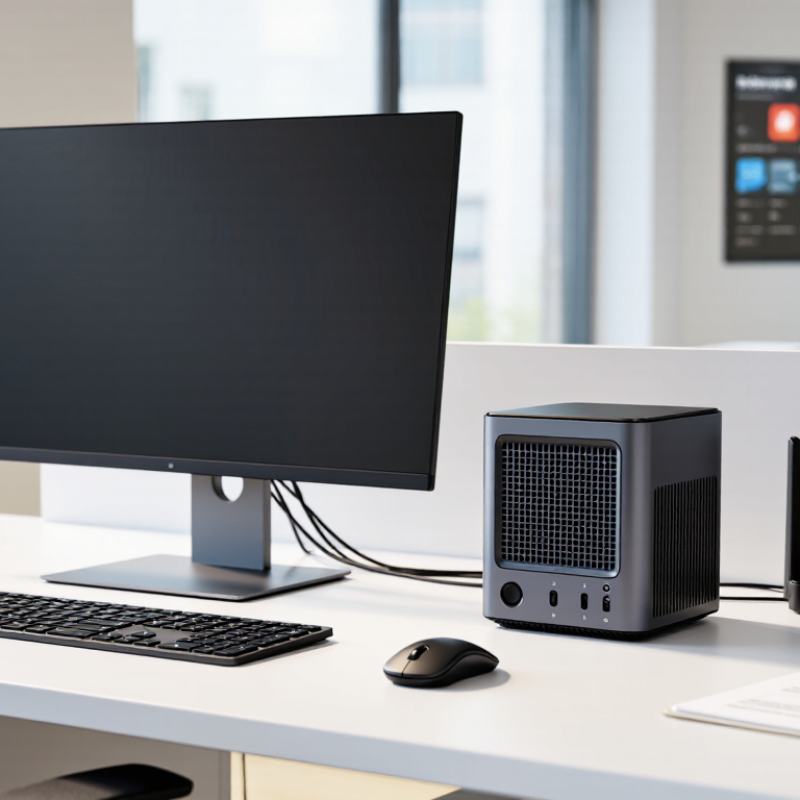
Why Choose a BMAX Mini PC for Your Business?

What Defines a BMAX Mini PC for Business Use?

A business mini PC is defined less by its size than by how reliably it supports daily work. Look for a current processor, at least 16 GB of memory for ordinary multitasking, and storage that can be replaced or expanded. Check the practical details: enough USB ports for a keyboard, headset, and external drive; stable network connections; and mounting options that keep the desk clear. Small is useful, but it is not automatically efficient.

Manageability matters just as much. A suitable model should support firmware updates, device encryption, and centralized security controls. The 2024 Data Breach Investigations Report found that 68% of breaches involved a human element, such as error or social engineering. That figure does not make a compact computer safer by itself. It does reinforce the need for consistent updates and clear device policies. Ask how long the manufacturer provides support, and how repairs are handled.

Heat and noise are easy to overlook. In a small office, a fan that runs loudly during video calls becomes noticeable fast. Check independent reviews under sustained workloads, not just short benchmark tests. Also confirm warranty terms and replacement-part availability before buying. One compromise is worth admitting: compact systems may offer fewer upgrade paths than tower desktops. A technician should verify the ports and support period against the team’s actual workload.

Which Business Tasks Can a BMAX Mini PC Support?

A compact mini PC can support many everyday business tasks without taking up a full desk. At a reception counter, it can run appointment software, email, and a customer display. In an office, staff can prepare documents, update spreadsheets, and join video meetings. These workloads are practical when the processor, memory, and storage match the software being used.

It can also power digital signage in a shop or meeting room, display dashboards, and handle browser-based sales or inventory tools. For remote work, connect a monitor, keyboard, webcam, and headset, then use the company’s approved collaboration apps. Check the available ports and wireless options before buying; a missing display connection can complicate an otherwise simple setup. Small details matter.

A mini PC is less suited to demanding 3D design or heavy video production unless its hardware is specifically built for those jobs. Performance depends on configuration, workload, and cooling, so test real applications before standardizing a fleet. Keep it simple. Also plan for updates, backups, and device management; compact hardware still needs routine care. One trade-off is easy to overlook: limited internal space may make later upgrades harder.

How Do Its Size and Hardware Affect Workplace Setup?

A compact mini PC can clear valuable space on a reception desk, shared workstation, or small meeting-room table. It can sit behind a monitor or mount under a desk, leaving more room for paperwork and peripherals. That space is useful. Before planning the layout, measure the mounting area and check where its vents sit. A tight cabinet may look tidy but restrict airflow. Also account for the power adapter and cables; they need somewhere to go.

Hardware choices shape the daily setup. Multiple display outputs can support two screens, while USB ports determine whether a keyboard, webcam, printer, and external drive can stay connected. Check the exact model’s port selection and wireless options before buying; compact systems can differ considerably.

Adequate memory and fast solid-state storage help with routine office tasks, but demanding workloads may need stronger specifications. Cooling matters, too. A small computer under sustained load can become audible, especially in a quiet office. Not every desk is quiet. Test the intended workload and placement if possible, because a neat installation is not automatically a comfortable one.

What Connectivity and Compatibility Options Does It Offer?

A compact business PC is useful only when it fits the equipment already on your desk. Check the exact model’s port list before ordering: HDMI or DisplayPort can connect monitors, while USB ports support keyboards, mice, webcams, and storage drives. Port types and quantities vary. That small detail can save an adapter hunt later.

For stable desk connections, look for Ethernet alongside Wi-Fi. Bluetooth can pair compatible headsets or keyboards, though performance depends on the device and surroundings. Before rollout, confirm the operating system supports your required business software and peripherals. Test one unit with your monitor, printer, and conferencing setup; compatibility can be less tidy than a product page suggests. Some older screens may need a suitable cable or adapter.

Tips: Match video outputs to your monitors, count USB ports, and verify network needs. Keep a short list of essential apps and devices, then test them before buying several units. A quick check beats an avoidable return.

How Can Businesses Evaluate a BMAX Mini PC Before Purchase?

Before purchase, define the actual workload: office applications, video calls, browser tabs, or specialized software. Gartner reported that worldwide PC shipments reached 245.3 million units in 2024, up 1.3% from 2023. This market growth, reported in January 2025, signals continued computer refresh activity; it does not prove that a mini PC suits every business. Check each model’s processor, memory capacity, storage, and operating-system compatibility against your team’s daily tasks. A compact case can still struggle with sustained heavy workloads.

Evaluate the complete setup, not just the purchase price. Confirm that the device supports your monitors, network, peripherals, and any required security or remote-management tools. Ask about warranty coverage, replacement parts, and the expected support period. Where possible, test a sample unit with your normal apps open, a video call running, and several displays connected. Note fan noise, heat around the vents, and performance after an hour. One imperfect test will not predict every office environment, but it can expose practical problems early.

Tips: Measure power use at idle and during a typical workday; compare results across candidate systems. Check the ports in person, too. Tiny details matter. Keep a few spare units if downtime would disrupt work, and document the exact configuration tested.

Why Choose a Mini PC for Your Business? How to Evaluate One Before Purchase

Evaluation Dimension What to Check Practical Acceptance Criteria Why It Matters to a Business
Workload and processor Compare the processor model and performance tests with the applications employees will use. Test typical workloads such as office applications, video calls, browser-based tools, and any business-specific software before ordering in volume. Helps avoid paying for unnecessary performance or choosing a system that cannot handle daily tasks.
Memory capacity Check installed memory, maximum supported capacity, and whether memory can be upgraded. For general office use, assess whether 16 GB meets the organization’s multitasking needs; consider more for memory-intensive workloads. Confirm the limit in the product documentation. Adequate memory supports smoother multitasking and may extend the useful life of the computer.
Storage and expansion Verify storage type and capacity, available drive bays or slots, and whether storage is replaceable. Confirm that the drive is an SSD and that its capacity covers the operating system, applications, and locally stored files. Check documented expansion options. Fast storage improves everyday responsiveness, while upgrade options can reduce future replacement costs.
Display connectivity Inspect the number and type of display outputs and the resolutions and refresh rates each supports. Match the documented outputs to the organization’s monitors. For a 4K display at 60 Hz, confirm that the specific port and system configuration support that mode. Ensures compatibility with existing monitors and avoids unexpected adapters or limitations.
Networking Check wired Ethernet speed, Wi-Fi standard, Bluetooth support, and any required security or management features. Confirm that wired and wireless capabilities meet the office network requirements; validate wireless coverage and connection stability at the intended location. Reliable connectivity is essential for cloud applications, shared resources, video meetings, and remote management.
Ports and peripherals Count the USB ports and identify their types, along with audio, network, and other required connections. Make a list of keyboards, mice, cameras, storage devices, and other peripherals, then verify that the available ports support them without relying on untested hubs. Reduces setup friction and helps ensure the computer fits existing workplace equipment.
Size, mounting, and workspace fit Review the device dimensions, mounting options, ventilation clearance, and power-adapter placement. Measure the intended desk or mounting area and follow the manufacturer’s ventilation and installation instructions. A compact system can save desk space, but proper airflow and accessible connections remain important.
Power, heat, and noise Review the power-adapter rating and test fan noise, surface temperature, and performance under sustained workloads. Run representative applications for an extended test period in the intended environment; check for excessive noise, thermal throttling, or unexpected shutdowns. Helps assess operating comfort, stability, and suitability for shared or quiet workspaces.
Operating system and software compatibility Confirm the supplied operating system, driver availability, license terms, and compatibility with required business applications. Test essential applications, peripherals, device-management tools, and security software on the proposed configuration before deployment. Prevents deployment delays and compatibility issues across the organization.
Security and manageability Check supported firmware security features, update processes, user controls, and compatibility with the organization’s management tools. Have the IT team verify required security settings and confirm that firmware and operating-system updates can be maintained. Supports consistent device administration and helps align the purchase with internal security policies.
Warranty and service Review warranty duration, coverage, repair process, shipping arrangements, and availability of technical support. Confirm the terms in writing for the exact configuration and sales region; compare the service process with the organization’s downtime requirements. Clear support arrangements make it easier to plan for faults and reduce uncertainty about repair costs.
Total cost of ownership Calculate the purchase price alongside accessories, software, deployment, support, energy use, and likely upgrades. Compare costs over the organization’s expected replacement period, using the same assumptions for each candidate system. A broader cost comparison gives a more useful view than purchase price alone.
Pre-purchase pilot Evaluate a sample unit with real users and the organization’s standard software and network setup. Record setup time, application performance, peripheral compatibility, connection stability, and user feedback before placing a larger order. A small pilot can uncover practical issues before they affect a full deployment.

Article Source:

Scroll to Top