





JHY PCB Blog Hub

Your Source for Expert PCB Design, Manufacturing, and Assembly Insights – Stay Informed with 2025 Trends!

What Is an Embedded Tablet and How Does It Work?

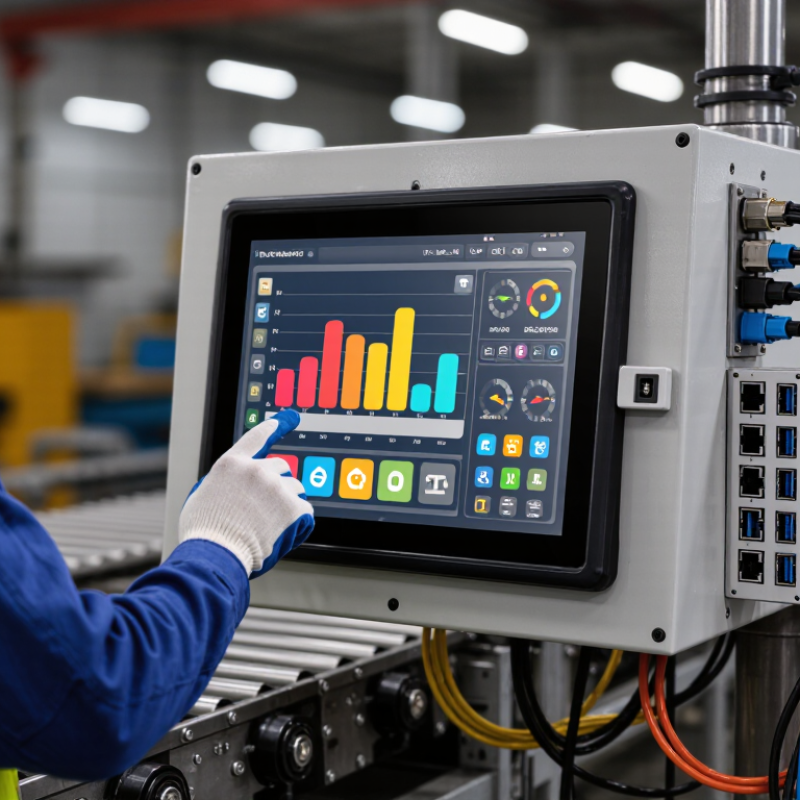
An Embedded Tablet is a compact computing device built into a machine, vehicle, kiosk, or control panel. Unlike a general-purpose tablet, it is selected or configured for a specific role. Its touchscreen may show a production line’s temperature, accept a warehouse scan, or let a technician adjust a pump beside the equipment.

Inside, a processor runs an operating system and dedicated application. Drivers connect the software to the display, touch controller, and peripherals. Power-on starts the system; the application then reads sensor inputs or network data and presents relevant controls. Depending on the design, ports such as USB, Ethernet, or serial connections link it to other hardware. The exact setup varies. “Embedded tablet” is not always used as a strict technical category, so product specifications matter more than the label.

The wider context is growing connected infrastructure. IoT Analytics’ State of IoT—Summer 2024 report estimated 18.8 billion connected IoT devices by the end of 2024. It projected about 40 billion by 2030. That growth does not mean every connected device needs a tablet; it does help explain demand for practical, on-site interfaces. Computer scientist Mark Weiser wrote, “The most profound technologies are those that disappear.” His observation captures a useful design goal: controls should feel natural, even when the technology behind them is complex. Not every installation achieves that. A bright screen can still be hard to read in sunlight, and a tablet can become a weak point if its environment is overlooked. Understanding how it works starts with the job, the connections, and the conditions around it.
What Is an Embedded Tablet and How Does It Work?

What Defines an Embedded Tablet

An embedded tablet is a touchscreen computer designed to operate as part of a larger product or installation. It may sit flush in a factory control panel, a medical cart, or a self-service kiosk.

Its purpose is usually defined before the hardware is chosen. The screen, processor, ports, and mounting points must fit the equipment around it. That is the distinction. A consumer tablet can run many unrelated apps; an embedded tablet is configured for a narrower, repeatable job.

Inside, the processor runs an operating system and application that manage the display, input, and connected devices. A tap might open a machine status screen, while a serial or USB connection passes readings to a sensor or controller. The tablet can also start directly into its assigned interface, limiting unnecessary steps for the operator.

Built-in wireless networking may support updates or data transfer, though some installations rely on wired connections for steadier communication. Physical details matter too: a recessed bezel can protect the screen, and a secure mount can reduce movement during use. The boundary is not always tidy. A tablet becomes “embedded” through its role and integration, not simply because it is bolted in place. A loose cable or poorly planned update process can still disrupt the whole setup.

The Main Hardware and Software Components

An embedded tablet is a computing unit built into a larger product or installation. Its hardware must fit the enclosure, workload, and operating environment. The display and touch sensor form the user-facing layer. Beneath them, a processor runs applications, while memory supports active tasks and storage holds the operating system and data. The board also connects ports, speakers, cameras, and other peripherals. Power circuitry regulates incoming electricity. Heat needs attention, too; a compact case can trap warmth around the processor.

The software stack typically includes firmware, an operating system, device drivers, and the application interface. Firmware starts the hardware and checks basic components. Drivers let the system communicate with the touchscreen, network adapter, and connected devices. The operating system manages memory, files, and background tasks. Applications then provide the specific controls or information people need. A simple interface helps. But simplicity takes testing.

Reliable operation depends on how these layers work together. For example, a slow startup may come from the application, storage, or boot configuration, not just the processor. Developers can use diagnostic logs and controlled power-cycle tests to find the cause. They should also check what happens when a network drops or a peripheral disconnects. A neat component diagram may still miss these awkward moments. Real use is messier.

How an Embedded Tablet Processes Inputs and Commands

An embedded tablet turns physical actions into structured signals. When a finger touches glass, the digitizer measures its position and sends coordinates to the processor. Software filters accidental taps, identifies gestures, and passes an event to the active application. A button, temperature sensor, or network message follows a similar path, though each arrives in a different format.

Then the application checks what the input means. A tap on a control might open a menu; a sensor reading might trigger an alert. The operating system schedules these tasks, while the processor runs the required instructions and updates the display. Commands may also travel outward to connected equipment, so the tablet should check that they are valid before acting. Real systems are messier. A delayed touch or noisy sensor can still produce confusing behavior.

This is where dependable input handling matters. NIST’s 2019 NISTIR 8259A identifies six baseline cybersecurity capabilities for IoT devices, including logical access to interfaces and data protection. These capabilities do not measure touch response, but they offer a useful framework for controlling who or what can issue commands. In practice, designers test rapid taps, wet-screen behavior, and interrupted connections. A clean demo is not enough. Small failures often appear only after repeated use.

How It Connects to Equipment and Networks

An embedded tablet connects to equipment through interfaces built into its computing unit or added through an interface module. Common options include Ethernet, USB, serial ports, and digital input/output pins. Some systems also use CAN or other fieldbus connections. The right choice depends on the equipment’s controller, cable distance, and data rate. A machine may send temperature readings over a serial link while receiving start or stop signals through isolated inputs. Small details matter. Check voltage levels and communication settings before connecting anything; matching connector shapes does not guarantee compatibility.

For network access, the tablet can use wired Ethernet or Wi-Fi to exchange data with a local server, monitoring station, or other equipment. Software translates incoming signals into readable values and sends approved commands back. On a factory floor, a tablet might display a pump’s pressure and report an alert when readings exceed a set range. If the network drops, local storage can preserve data until the connection returns, if the system supports it. That part is easy to overlook. Network permissions, encryption, and regular software updates also help protect device communications. In real installations, wiring diagrams are sometimes incomplete, so testing each connection against the equipment documentation is a practical step.

What Is an Embedded Tablet and How Does It Work? — How It Connects to Equipment and Networks

Connection How It Connects Typical Equipment or Network Use Practical Considerations
USB host The tablet’s USB host port supplies a data connection to a peripheral. Barcode scanners, cameras, keyboards, storage devices, and some control peripherals. Check device compatibility, available port type, and whether the peripheral needs separate power.
USB device The tablet acts as a peripheral when connected to a host system. Service setup, data transfer, or integration with a computer or controller. Whether this mode is available depends on the tablet’s hardware and operating system configuration.
RS-232 serial A serial port sends and receives data over separate transmit and receive lines. Legacy instruments, payment equipment, scales, and industrial controllers. Confirm connector type, baud rate, data format, and voltage-level compatibility.
RS-485 serial Differential signaling supports serial communication over longer cable runs and, in suitable configurations, a shared bus. Building controls, meters, sensors, and industrial devices using protocols such as Modbus RTU. Termination, wiring topology, addressing, and protocol settings must match the connected equipment.
Ethernet A wired network connection links the tablet to a local network or directly to compatible equipment. Plant networks, data servers, networked controllers, and stable fixed installations. Network settings, cable routing, and the required link speed should be checked during installation.
Wi-Fi A wireless network connection carries data between the tablet and access points or network services. Mobile workstations, dashboards, inventory systems, and wireless access to local or cloud services. Coverage, network security, roaming behavior, and interference can affect reliability.
Bluetooth A short-range wireless link pairs the tablet with compatible devices. Headsets, scanners, printers, sensors, and other nearby peripherals. Range and supported profiles vary by device; pairing and access permissions may be required.
Cellular A built-in modem connects through a mobile network using a SIM or eSIM, where supported. Remote sites, field equipment, and installations without dependable local Wi-Fi or Ethernet. Service availability, data plans, antenna placement, and local signal strength affect connectivity.
CAN bus A CAN interface communicates with devices on a shared vehicle or machine network. Vehicle diagnostics, mobile machinery, and equipment control systems. Use a compatible interface and confirm the bus speed, message format, and access requirements.
GPIO and digital I/O Input and output pins detect or signal simple electrical states. Switches, indicators, alarms, and basic equipment-status signals. Check input voltage, current limits, isolation, and whether an external interface circuit is needed.
Power and grounding A regulated power input runs the tablet; grounding and isolation affect how it shares electrical connections with equipment. Panel-mounted and vehicle-mounted installations, including systems with external peripherals. Follow the specified input range and protection requirements; avoid assuming that signal ground and chassis ground are interchangeable.

Where Embedded Tablets Are Used and Why they Fit the Task

An embedded tablet is a touch-screen computer built into a larger machine or control system. It runs a specific interface, such as a production dashboard, room-control panel, or vehicle diagnostic display. Unlike a general-purpose tablet, it can connect directly to sensors, controllers, and wired networks. A technician might tap a status icon beside a conveyor, then adjust a setting without walking back to a separate control cabinet. Useful in tight spaces. Its fixed mounting and dedicated software can reduce clutter and keep key controls close to the task.

These devices appear on factory lines, in building-management systems, medical equipment, and transport terminals. IoT Analytics estimated 18.8 billion connected IoT devices worldwide in 2024, reflecting the growing need to monitor connected equipment. The International Energy Agency reports that buildings account for about 30% of global final energy consumption; embedded panels can help staff track lighting, temperature, and equipment use locally. The fit is practical: operators see live readings where decisions happen, even when gloves, dust, or limited space make ordinary computers awkward. Still, integration is not automatic. A bright screen can glare under factory lights, and a poorly placed panel becomes another obstacle. The small details matter: viewing angle, touch response, and reliable connections.

Scroll to Top